
Plugins used
- Other5 built in
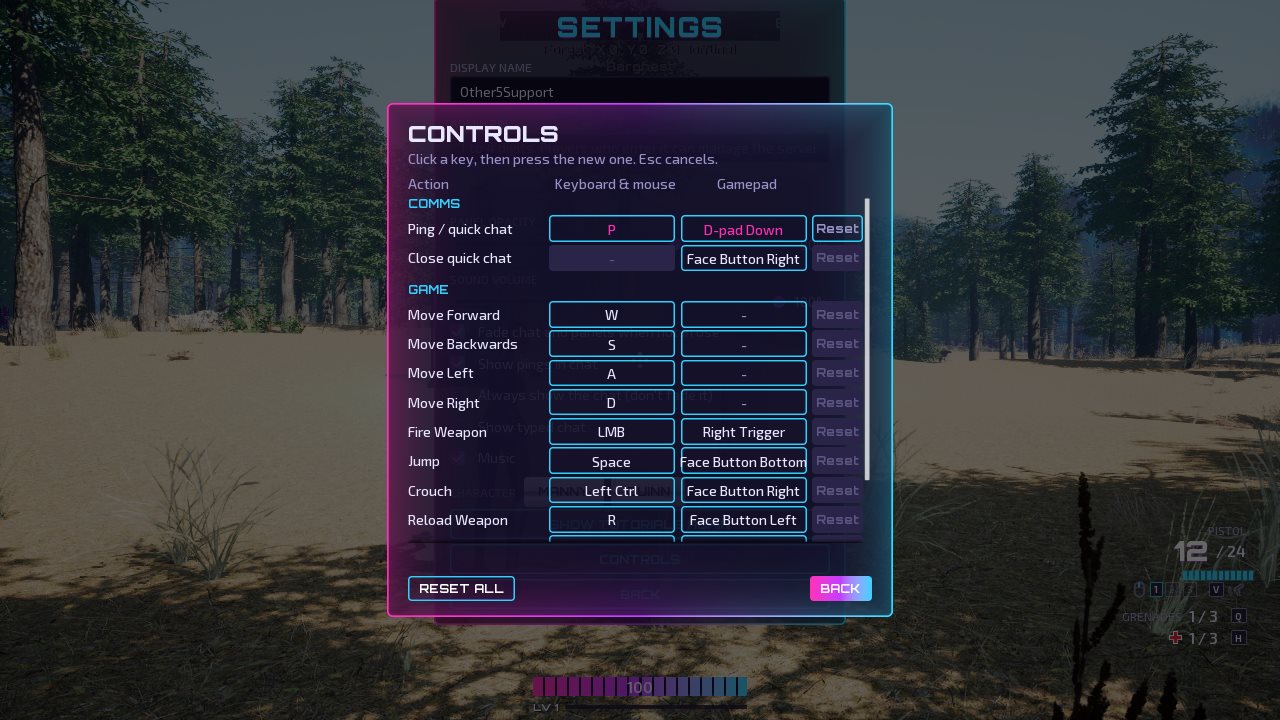
What players see
Every Creation's in-game Settings screen has a Controls button. It lists your actions in two columns, Keyboard & mouse and Gamepad. Players click a key and press the new one. Each row has a Reset, and Reset all puts every key back. Their keys are saved on their PC.
Make your controls rebindable
- Make an Input Action and an Input Mapping Context as usual, with your default keys.
- Open the Input Action and set Player Mappable Key Settings:
- Name: unique to your Creation, for example
MyCreation.Dash; - Display Name: what players read, for example
Dash; - Display Category: the heading it goes under, for example
Movement.
- Name: unique to your Creation, for example
- In your character or player controller Blueprint, on Begin Play, call Add Other5 Mapping Context with the player controller and your mapping context.
- Use the action as usual (the EnhancedInputAction event). When players change the key, the event fires on the new one. Nothing else to do.
Show the right key in prompts
For text such as "Press E to open", call Get Other5 Key Text with the player controller, your mapping Name and whether you want the gamepad key. To update the text when players change keys, bind to On Bindings Changed on the Other5 Input Subsystem (Get Local Player Subsystem).
Good to know
- A key goes in the Keyboard & mouse or Gamepad column by its default key. Players can add a gamepad button to an action that has none.
- If players pick a key that's already in use, the two actions swap keys.
- Esc, F10, the console key and the gamepad's Start and Back stay with the menu. Sticks can't be rebound.
- Two Creations with the same Name share one setting. Use your own Names, unless you mean to share a
control with the Other5 combat plugin (such as
Jump).