
Works with whichever plugins you installed in Getting started, step 6. Other5 Setup is built into the Creator. What each plugin provides
Why the plugins show stand-ins
Other5's plugins use art from Epic: Fab packs (creatures, a building kit, the forest's trees) and Epic's samples (Lyra's characters, animations and weapons). Epic's licence lets anyone use that art in a game, but not hand the source files to someone else. So the plugins you download hold stand-ins at the same paths instead: plain shapes, magenta-checked materials, blank animations and simple sounds. Everything loads and plays with them, and a Development build shows a small on-screen note while any are in use.
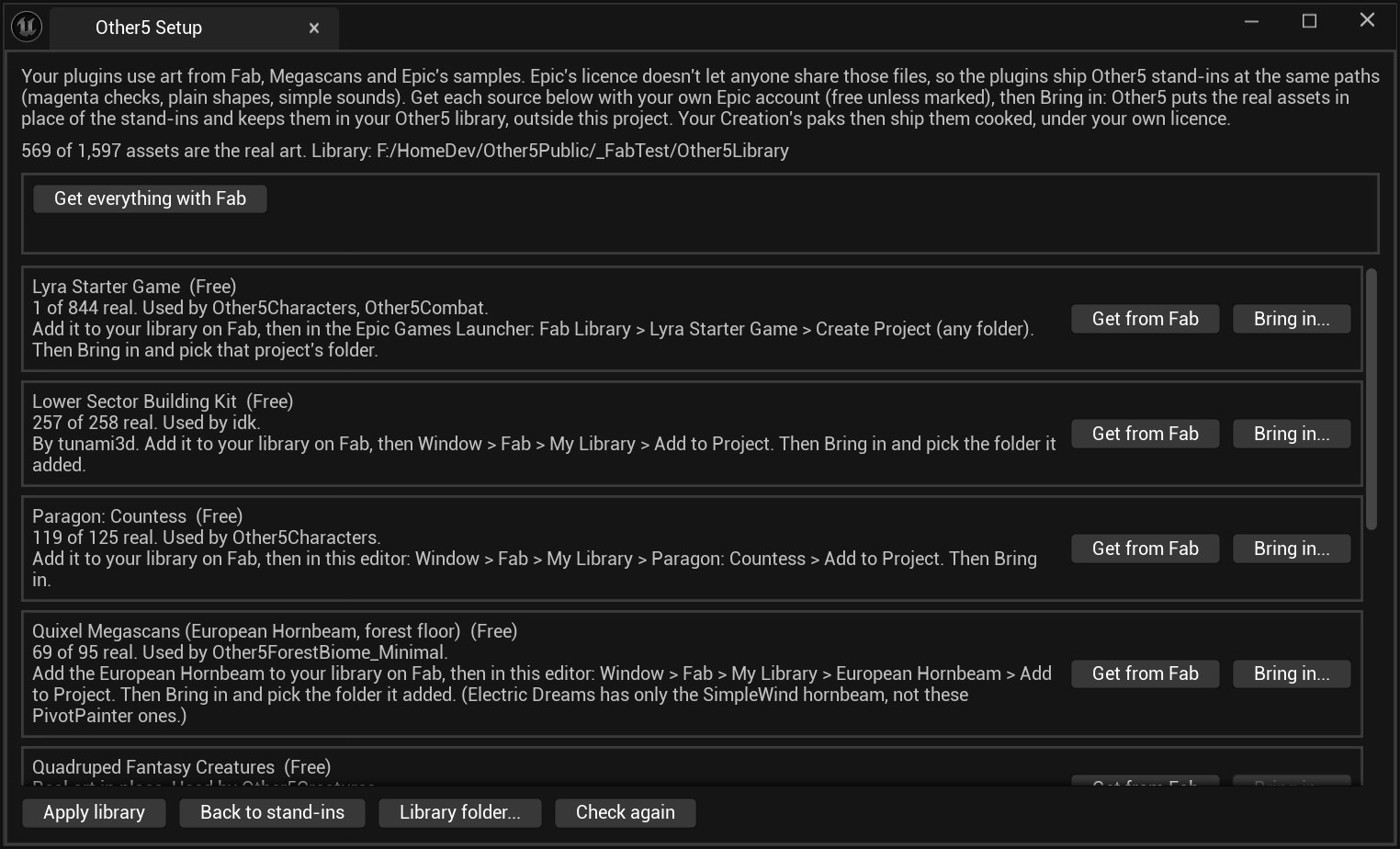
You get the real files with your own Epic account, which is where you accept Epic's and each seller's licence. Other5 Setup then puts them in place of the stand-ins and keeps a copy in your Other5 library, a folder next to the Creator that is never uploaded or shared. When you publish, your Creation's paks carry the art cooked, under your licence.
1. Open Other5 Setup
Open the Creator from the launcher (Getting started, step 5). If any
plugin has stand-ins, a note pops up at the bottom right: "... assets in your plugins are Other5
stand-ins". Click Open Other5 Setup. You can also open it any time from Tools >
Other5 Setup, or by typing Other5.Setup into the console box at the bottom of the
editor.
The window lists every source your plugins use, how much of it is real on this machine, and which plugins need it.
2. Sign in to Fab in the editor
Fab is Epic's store, and it has a panel inside Unreal (Window > Fab). The first time, click the person icon at the top right of the Fab panel and sign in with your Epic account (the same one as the Epic Games Launcher). You stay signed in after that.
If the panel shows Add to My Library on a free listing you already own, you're signed out: sign in again from the person icon.
3. Click Get everything with Fab
Back in Other5 Setup, click Get everything with Fab. Setup opens one Fab tab for every free pack your plugins still need, all at once. Packs you added before count straight away, so it's safe to click it again later.
The status line under the button keeps count: how many have been added, and which ones it's still waiting for.
4. On each Fab tab: accept and Add to Project
Each tab shows one listing. Do this on every tab, in any order:
- If the listing has a licence menu, pick the one that fits you. Many packs are free with the Personal licence and cost money with the Professional one. Setup marks those in amber; read the terms on the listing (for example, some ask studios over a revenue limit to buy the Professional licence).
- Click Add to My Library if you don't own it yet, and accept the licence.
- Click Add to Project.
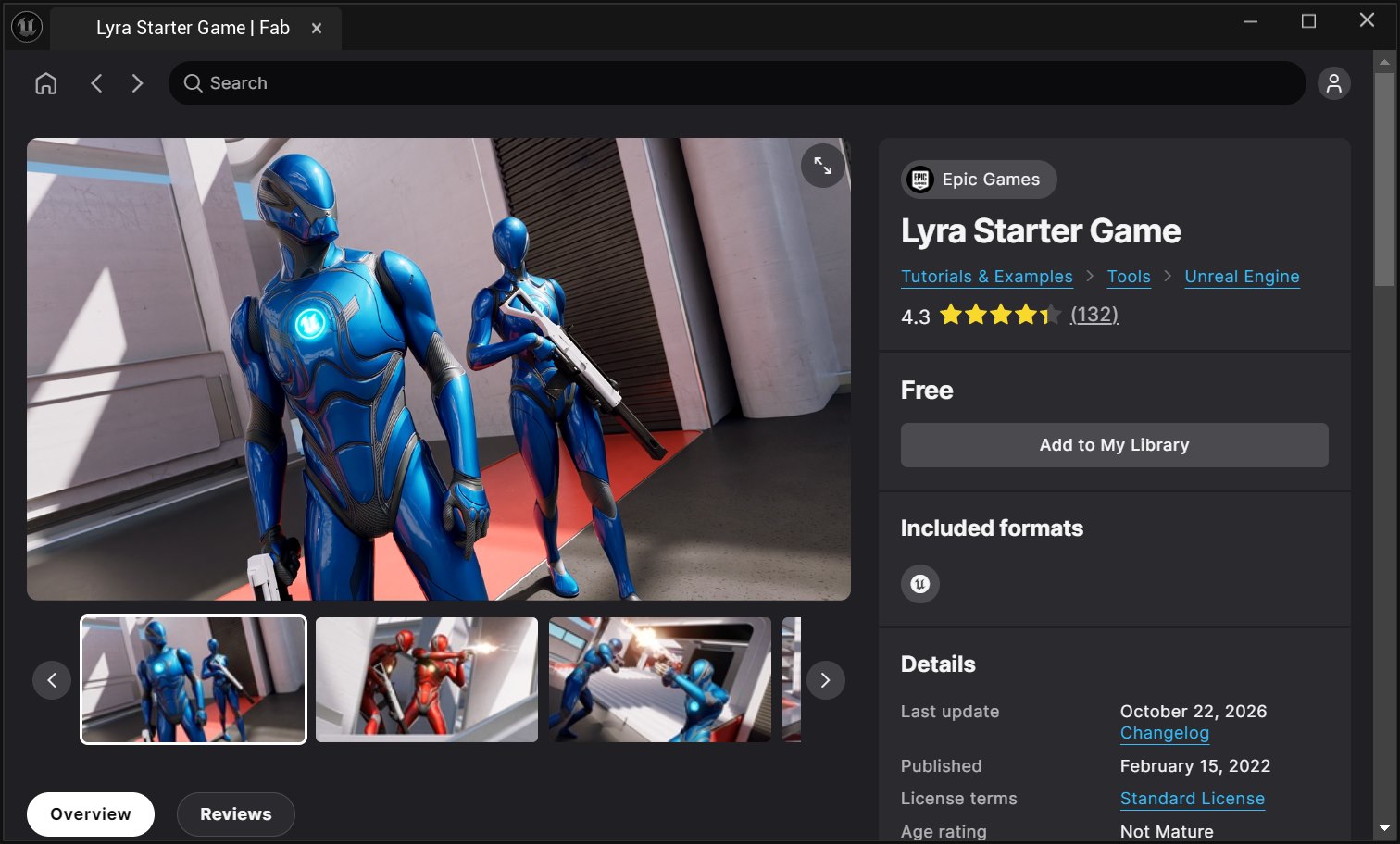
Fab starts downloading, and the tab closes by itself. Downloads run side by side, with a progress note at the bottom right for each ("Downloading Quadruped Fantasy Creatures"). Most packs are small; the creatures and the city kit are the biggest.
A prompt you may see while they download:
- "... changes to source content files have been detected. Would you like to import them?" Some packs bring raw source files. Click Don't Import.
A download you cancel, or that's cut off by closing the editor, starts again from the beginning next time.
5. Bring it all in
When the last pack has landed, Setup asks to bring them in: "the editor closes, Other5 swaps the files, and the editor opens again". Save your work and click OK. (To bring in what's landed without waiting for the rest, click Bring in what's added.)
A console window opens. For each pack it matches the files to the plugins' stand-ins by name, copies them into place, keeps them in your library, and fixes their references. It prints a line per pack, such as "Brought in 83 assets from Fab:QuadrapedCreatures", then reopens the editor.
6. Check it worked
Open Other5 Setup again. Each pack you added now reads Real art in place, and the stand-in note no longer pops up at start. Open a map that uses them (Forest, CubeEscape's creatures, the idk city) and the plain shapes are now the real art.
A few numbers stay below the total, and that's expected: Fab packs change over time, and a stand-in whose asset the current version renamed or dropped stays a stand-in. It still loads and plays.
7. Lyra and Electric Dreams (Epic sample projects)
Lyra (characters, animations, weapons for Other5Combat and Other5Characters) and Electric Dreams (a few of Other5Combat's effect materials) are whole Unreal projects, not packs the Fab panel can add. For each:
- Click Get from Fab on its row and add it to your library.
- In the Epic Games Launcher: Unreal Engine > Fab Library, find it, click Create Project, pick any folder and Unreal Engine 5.8. (Electric Dreams is large.)
- Back in Other5 Setup, click Bring in... on its row and pick that project's folder (the one with the
.uproject).
Good to know
- Your library. The real files live in
Other5Librarynext to the Creator folder. Library folder... moves it (it can be large). When the launcher updates the Creator or a plugin, click Apply library to put your real art back in place. - Back to stand-ins undoes it all (your library keeps the files).
- Clean up... frees disk space. Once a pack is brought in, the copy Fab put in your
Contentfolder isn't needed, and when a plugin update stops using some art, its files stay in your library. Clean up lists those folders with their sizes and deletes them when you say yes. Packs your own maps or Blueprints use are left alone. If a plugin needs something again later, Get everything with Fab downloads it again. - Publishing. Nothing in your library is uploaded with your Creation's source. Your paks carry the art cooked, which the licences allow. Never zip or share the library or a plugin with the real art in it.
- Paid listings (marked Paid) are skipped by Get everything with Fab. Buy one on Fab if you want it, then use Get from Fab and Bring in... on its row.
- Mac: the same steps work in the Mac Creator. The Fab plugin installs with Unreal Engine; if Window > Fab is missing, add it to the engine from the Epic Games Launcher.
Next
- Make and share your first map: Your first Creation.
- See what each plugin provides: What the plugins provide.